
Google has a number that should alarm any business owner: 53% of mobile users abandon a website if it takes more than 3 seconds to load. That is not a technical metric. It is a business metric. Every time your website is slow, you are losing potential customers who already found you.
Amazon calculated that every additional 100 milliseconds of latency cost them 1% in sales. More recent research from Portent shows that every second of improvement in load time translates to 8 to 12% more conversions.
In this article, we explain the most common causes of a slow website, how to diagnose them in under 2 minutes using a free Google tool, and what concrete steps you can take to fix them.
How to Measure Your Website Speed
The tool we use is Google PageSpeed Insights. It is free, requires no account, and is maintained by the same team that sets the criteria for Google rankings. Go to pagespeed.web.dev, enter your website URL, and click Analyze. In under 60 seconds you get a full diagnostic report.
The number that matters is Performance. Below 50, it is an emergency: your website is actively losing customers. Between 50 and 89, there is room for improvement. Above 90, you are in good shape.
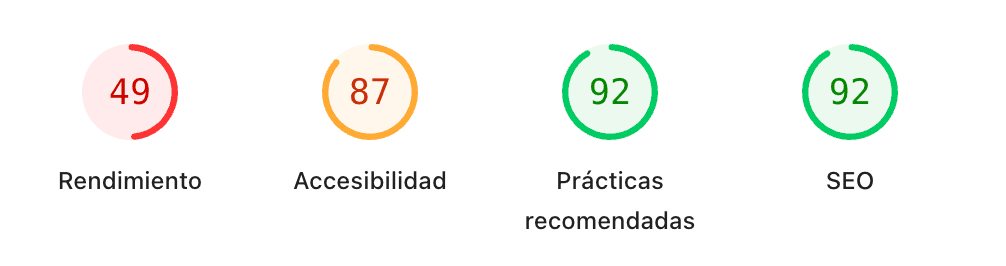
Further down in the report, PageSpeed lists Opportunities: the specific problems it detected and an estimate of how many seconds you would save by fixing each one. That list is your action plan.
For reference, this is what we get on webandup.com:
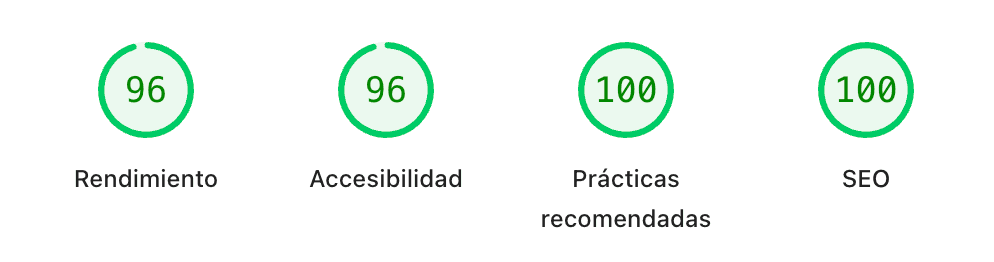
The contrast between the two screenshots sums up the problem and the solution. Now let us look at what is preventing your website from reaching that result.
The 5 Most Common Causes of a Slow Website
1. Unoptimized images
This is the number one cause in 60% of cases. A high-resolution photo downloaded from a camera or stock image site can weigh 3 MB or more. On most hosting plans, that single file can add several seconds to your load time.
PageSpeed flags this under Opportunities as "Defer offscreen images", "Efficiently encode images" or "Serve images in next-gen formats". If you see any of these, images are the first problem to address.
2. Slow hosting or no CDN
Your server determines the TTFB, the time it takes to respond to the first request from the browser. If your hosting has a TTFB above 600 milliseconds, everything else is secondary. PageSpeed flags this as "Reduce server response times (TTFB)".
Many small businesses run their websites on low-cost shared hosting that works fine for a handful of visitors but saturates under medium traffic. The problem stays invisible until visitors start arriving from campaigns or social media.
3. Too many plugins or third-party scripts
In WordPress, each active plugin adds JavaScript and CSS that the browser has to download and process before displaying the page. A site with 30 or 40 active plugins can add 2 to 3 extra seconds from this alone.
The most common third-party scripts that hurt speed include: advertising pixels, live chat widgets, Google review widgets, and cookie popups implemented in a blocking way.
4. No cache configured
Without cache, every visit downloads all resources from scratch: images, fonts, CSS, JavaScript. With cache enabled, the visitor's browser stores those files locally and any subsequent visit or page navigation becomes nearly instant.
5. Render-blocking CSS and JavaScript
Some CSS and JavaScript files load synchronously, meaning the browser pauses all page rendering until it finishes processing them. The result for the user is a blank screen or a spinner that lasts longer than it should.
Step-by-Step Solutions for Each Cause
Cause 1: Compress all images before uploading
The tool we recommend is Squoosh. It is free, runs in the browser, and can reduce a 3 MB image to 150 KB without visible quality loss. Just drag the image, select WebP format, and set quality between 75 and 85.

- Open squoosh.app in your browser
- Drag and drop the image you want to optimize
- In the right panel, select WebP format
- Set quality between 75 and 85 (the visual difference is minimal)
- Click the download button and use that version on your website
If you use WordPress, the ShortPixel plugin (free up to 100 images per month) automates this every time you upload a file from the media library. TinyPNG is another free option for compressing images in batches.
Cause 2: Upgrade hosting or enable a free CDN
If PageSpeed flags a high TTFB, there are two paths. The first is migrating to better hosting: SiteGround, Kinsta, or Cloudways have European servers with TTFB under 200 milliseconds for audiences in Spain and Latin America.
The second path, free of charge, is enabling Cloudflare. Its Free plan distributes static content from servers around the world, reducing the distance between the user and the data. It can reduce perceived load time by 0.5 to 1.5 seconds in many cases.
Cause 3: Audit and remove unnecessary plugins
- Go to WordPress > Plugins > Installed Plugins
- Deactivate plugins you do not actively use, without deleting them yet
- Re-run PageSpeed after each deactivation
- Permanently delete the ones that did not affect any functionality
- If you cannot identify which ones weigh the most, install Query Monitor (free): it shows how long each plugin takes in milliseconds
Cause 4: Enable caching with WP Rocket
In WordPress, WP Rocket ($59/year) is the industry standard. It automatically configures page cache, browser cache, and CSS and JavaScript minification. In most cases it improves the PageSpeed score by 10 to 25 points with default settings alone.
If you prefer a free option, W3 Total Cache does the same but requires more detailed manual configuration.
Cause 5: Defer non-critical JavaScript
WP Rocket includes this under the name "Defer JavaScript". If you use a different system, the Autoptimize plugin (free) has an equivalent option under Settings > JavaScript Options. The goal is to delay loading scripts that are not needed to render the visible part of the page, reducing the time to first render.
When Optimization Is Not Enough
There are situations where you can apply all of the above and the PageSpeed score still does not go above 60. That happens when the problem is not configuration, it is the technology itself.
WordPress with many plugins, premium themes with visual builders like Elementor or Divi, or old websites built without modern performance standards generate code that is structurally slow. Optimizing in those cases is like inflating a balloon with a hole: you make small gains and lose them again quickly.
The reason webandup.com scores 96 is not because we heavily optimized WordPress. It is because it is built with Next.js, a technology that generates static HTML by default, loads only the JavaScript each page needs, and uses native image lazy loading.
If you have been trying to improve your website speed for months without results, the problem is likely structural. The first step before making any decision is a technical audit to confirm the diagnosis and evaluate whether it makes more sense to optimize what you have or migrate to a more modern technology.
Not sure if your website problem is technical or a configuration issue? We do a free audit in 24 hours, with a speed, SEO, and critical issues report.
Request a free audit