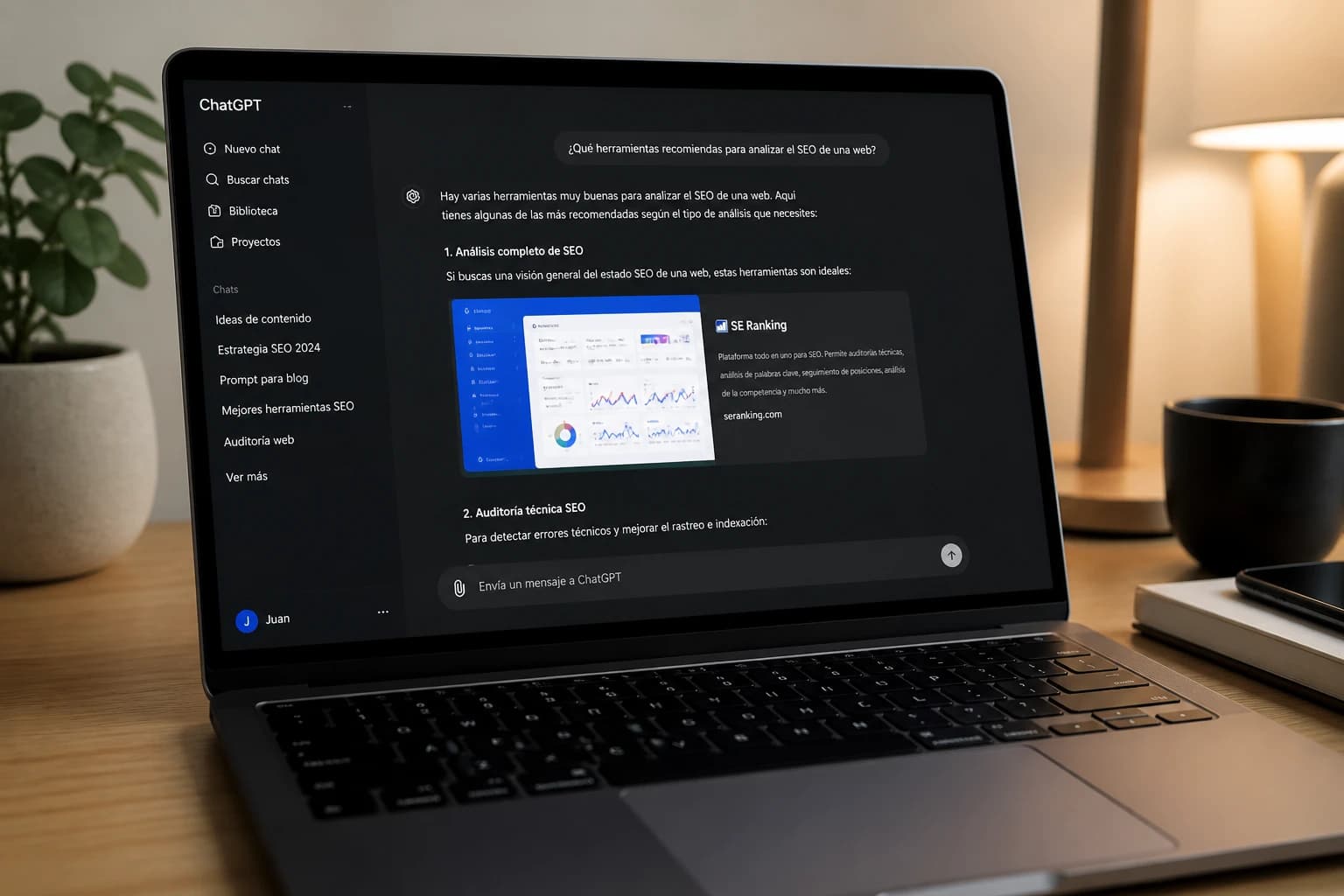
If someone asks ChatGPT which web agency to hire, or asks Perplexity how to build a fast website, and your site appears in the response, those visits land in your Google Analytics marked as 'Direct' — unless you know exactly how to find them.
This article explains two methods to identify traffic coming from AI tools to your website: a quick one that shows data in 2 minutes, and a more complete one that creates a dedicated segment to track it over time.
Which AI tools can send you traffic
When an AI recommends your website in a response and the user clicks the link, that traffic arrives from that tool's domain. The main AI traffic sources you can find in GA4 today are:
- claude.ai (Anthropic Claude)
- chatgpt.com (OpenAI ChatGPT)
- perplexity.ai (Perplexity)
- copilot.microsoft.com (Microsoft Copilot)
- you.com (You.com AI search)
- phind.com (Phind, developer-focused)
Not all AI visits are tracked this way. When a user manually copies a link from an AI response and opens it in a new tab, the traffic arrives as 'Direct'. Only direct clicks on links within the AI interface generate a trackable referral.
Method 1: Traffic Acquisition Report (2 minutes)
This is the fastest method. Go to Google Analytics 4, open the left menu and navigate to Reports, Life cycle, Acquisition, Traffic acquisition.
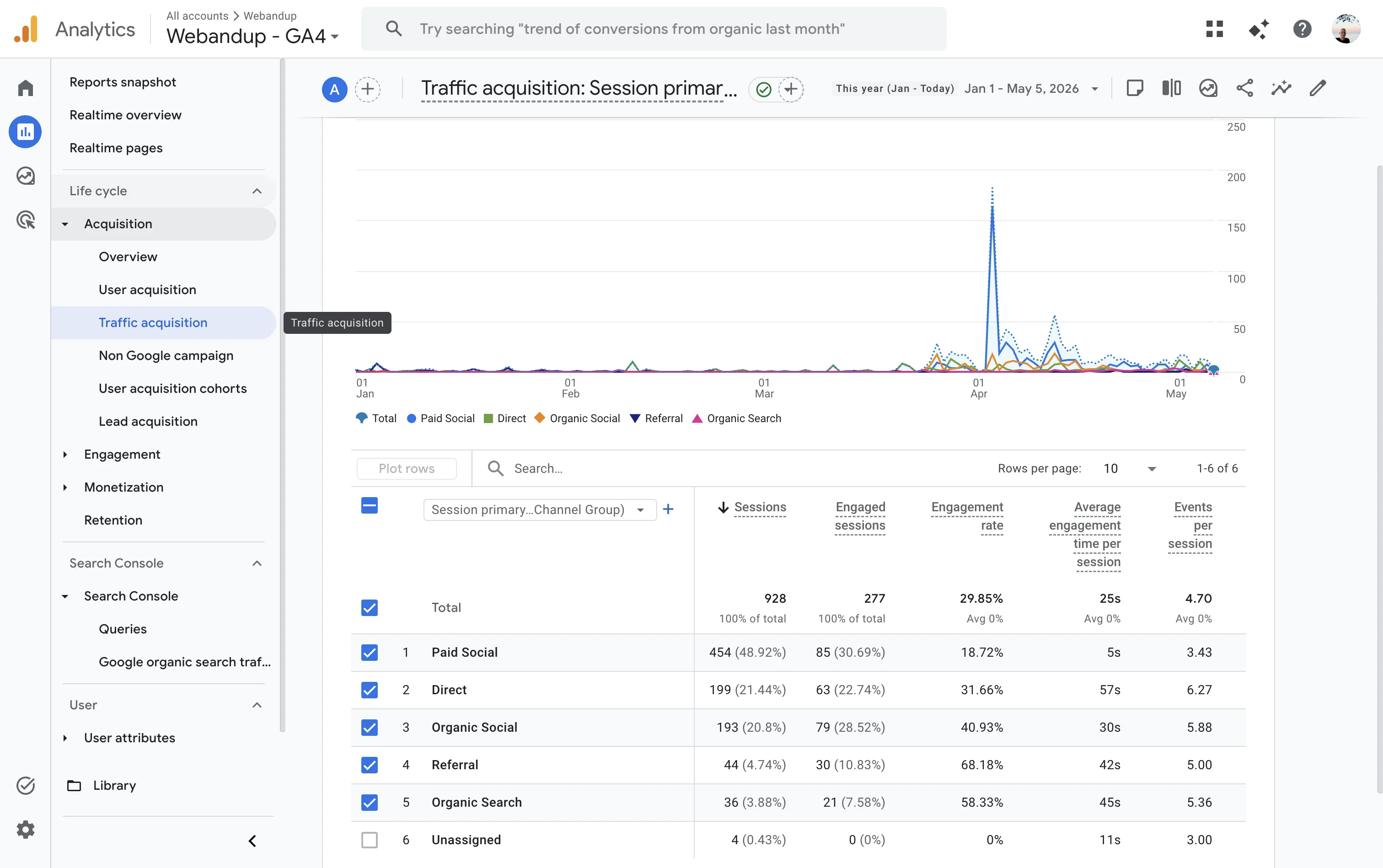
The table shows the 'Session default channel group' dimension by default. To see AI sources, click on the first column header and select 'Session source' from the dropdown menu.
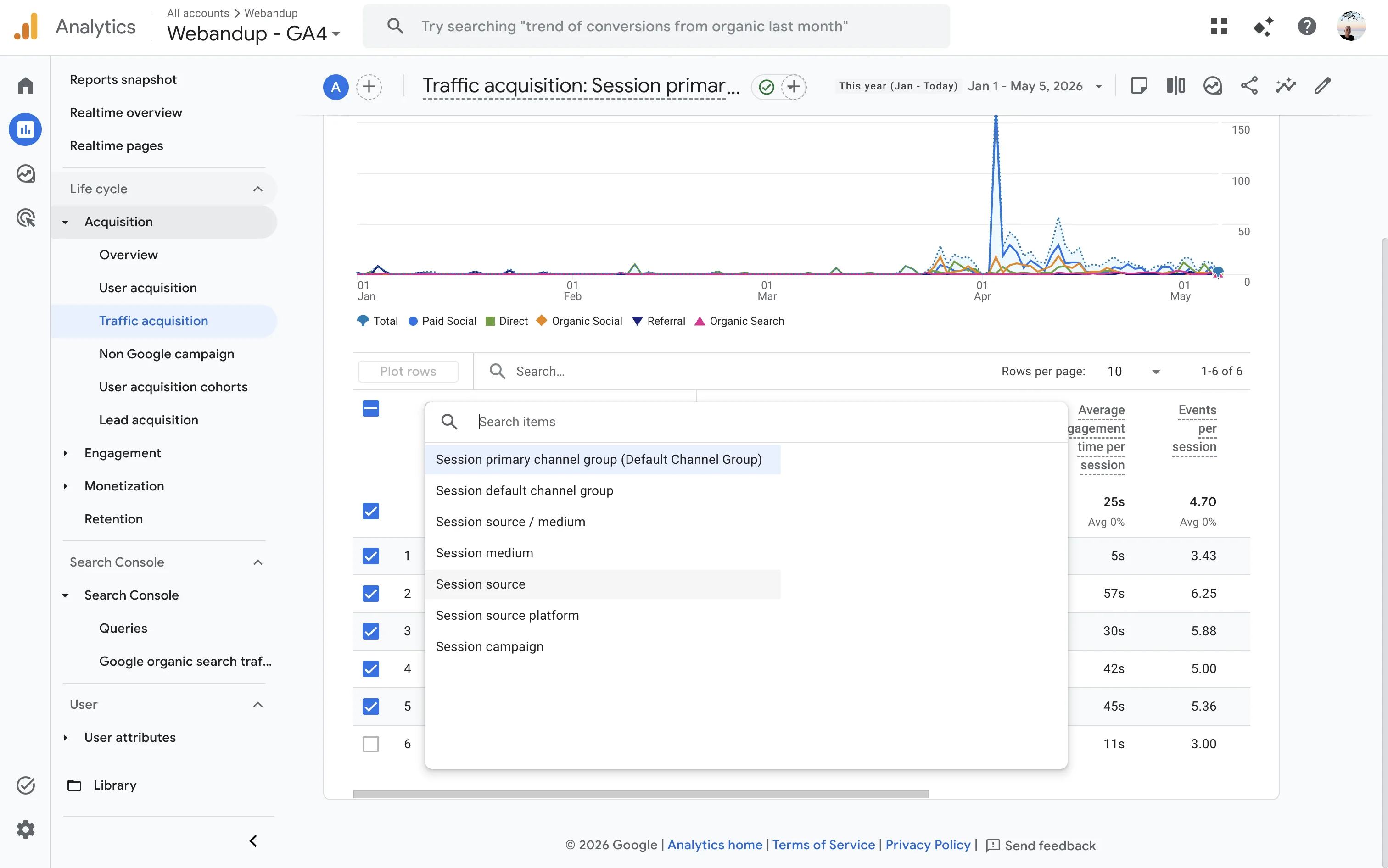
Once the dimension is changed, the table updates and you can see sources by domain name. If you receive traffic from claude.ai, chatgpt.com or perplexity.ai, they will appear here. If they don't appear yet, the volume may be too low for the selected date range, or your website may not yet be cited by AI tools.
Method 2: Custom Segment in Explore
This method creates a reusable segment you can apply in any GA4 exploration. It takes about 5 minutes to set up, and then the data is always available.
Step 1: open Explore and create a blank exploration
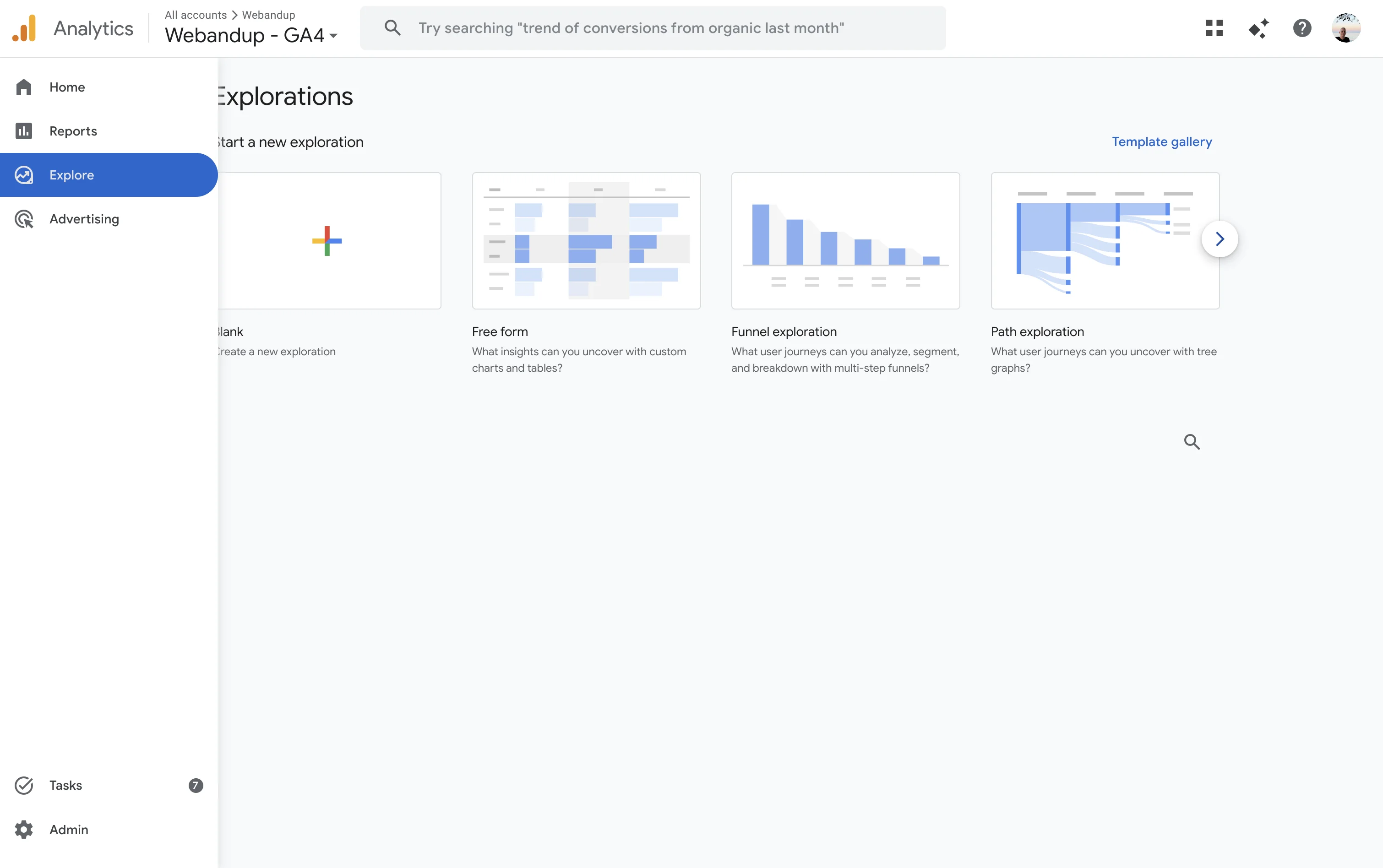
In the GA4 left menu, click 'Explore'. You'll see the exploration type gallery. Select 'Free form' to get started.
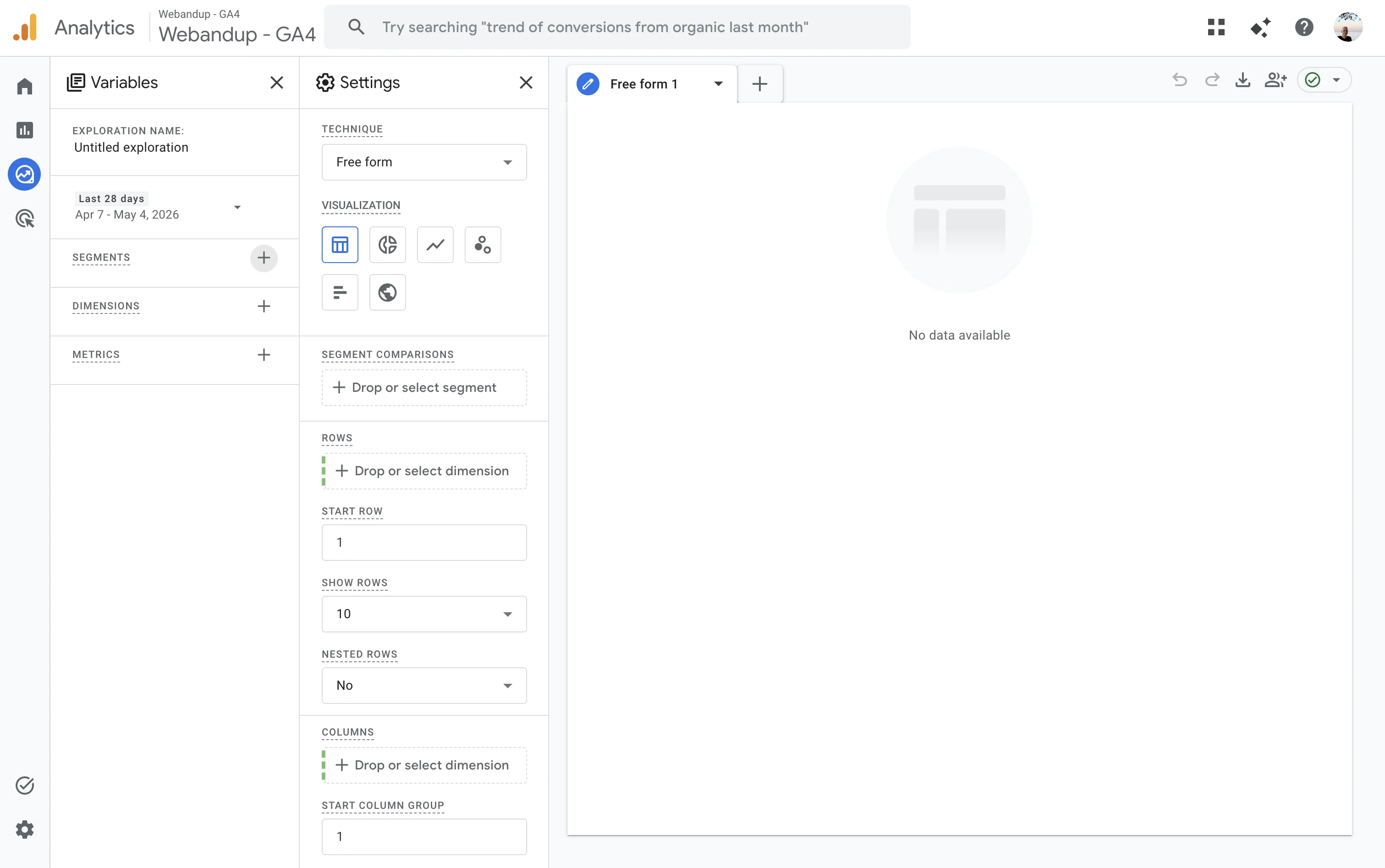
Step 2: add the AI Traffic segment
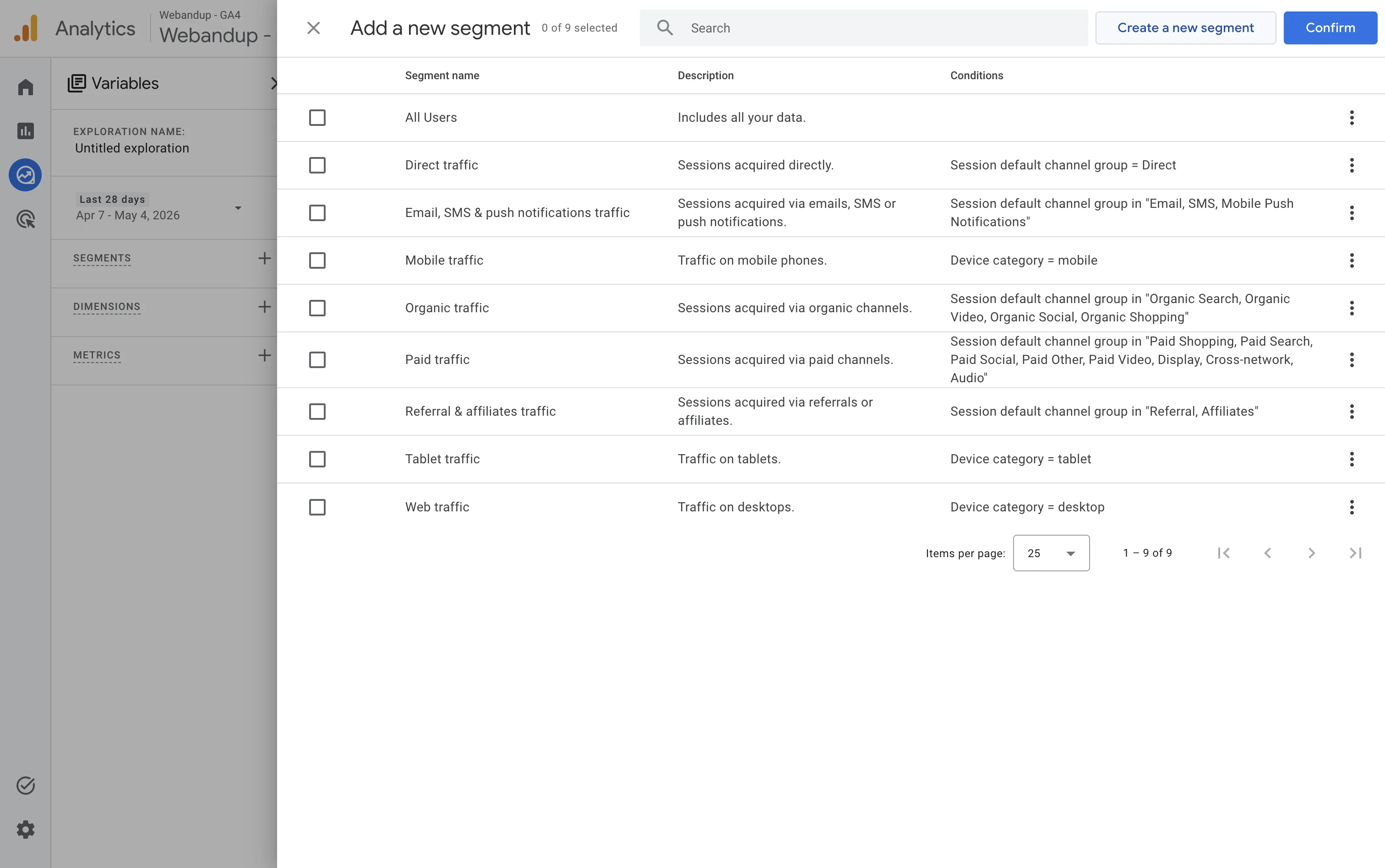
In the left panel, click '+' next to 'Segments'. A list of predefined segments will open. Ignore the list and click the 'Create a new segment' button in the top right corner.
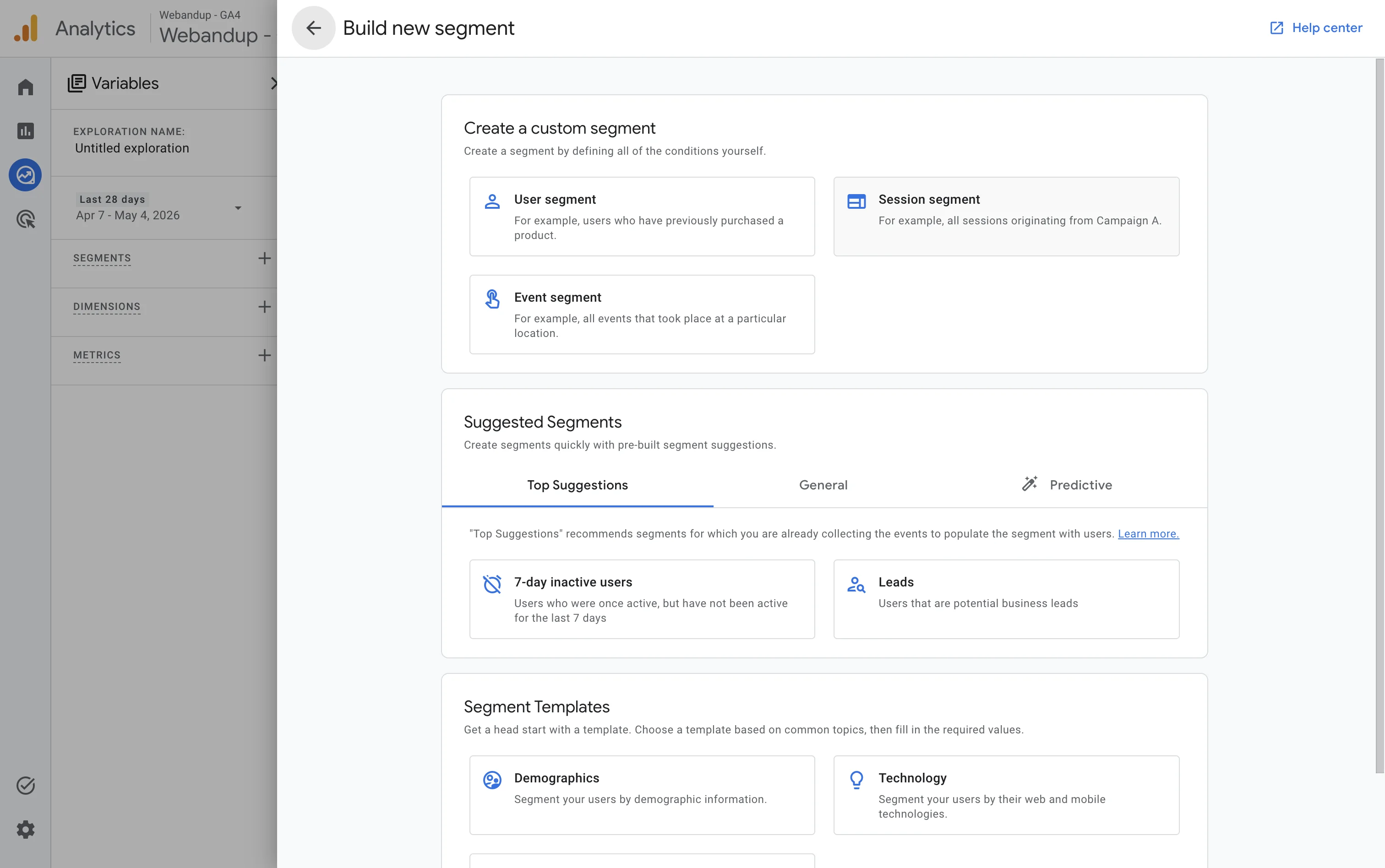
The 'Build new segment' screen appears. Select 'Session segment' to filter by visit origin.
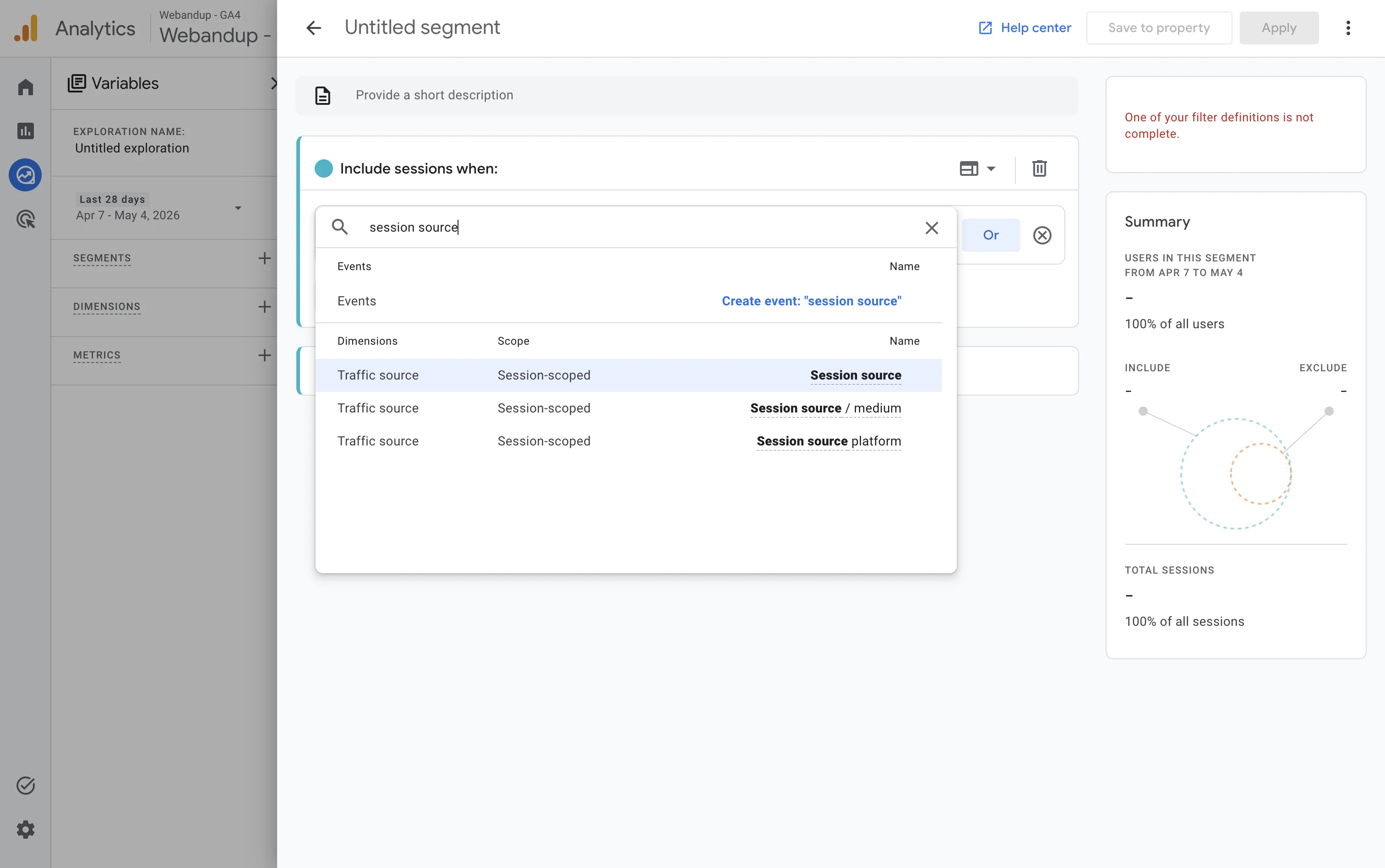
Step 3: add the Session source condition
In the segment builder, in the 'Include sessions when' field, click the '+ Add filter' button. Type 'session source' in the search box and select 'Session source' (Traffic source, Session-scoped).
Step 4: set up the filter with a regular expression
With 'Session source' selected, change the condition from 'contains' to 'matches regex' and type this expression in the text field:
- claude\.ai|chatgpt\.com|perplexity\.ai|copilot\.microsoft\.com|you\.com|phind\.com
Copy that expression exactly as written, with the escaped dots (backslash before the dot). The right panel will show the segment summary updating in real time, showing the percentage of sessions that match.
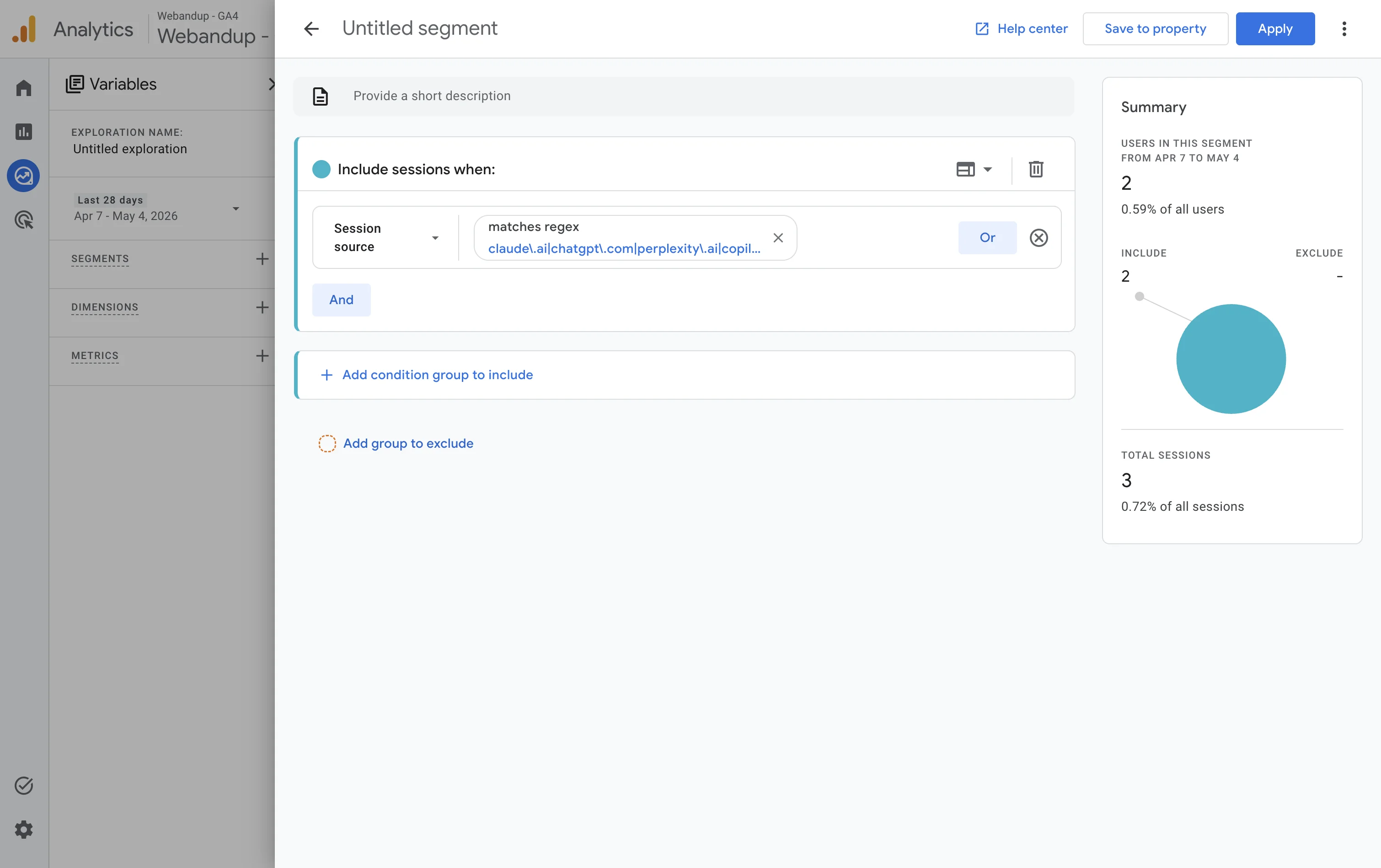
Click 'Apply' to save the segment and return to the exploration. Give it a descriptive name like 'AI Traffic' before saving.
Step 5: add dimensions and metrics
With the segment applied, you need to add the dimension and metrics before dragging them to the table. In the left panel:
- Click '+' next to 'Dimensions' and add 'Session source'
- Click '+' next to 'Metrics' and add 'Sessions' and 'Active users'
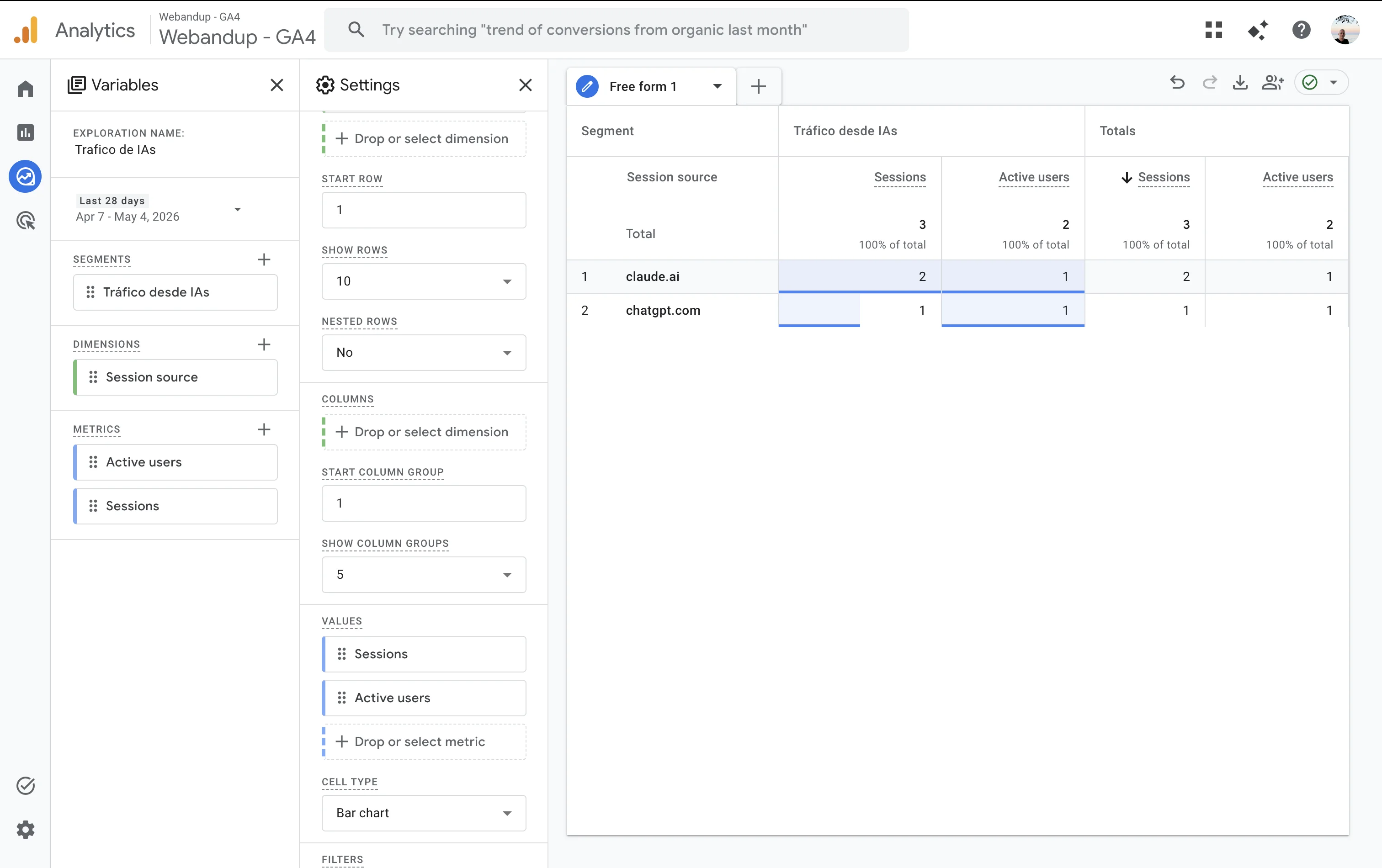
Then drag 'Session source' to the 'Rows' field in the center configuration column, and drag 'Sessions' and 'Active users' to the 'Values' field. The table will update showing each AI source separately.
What numbers are normal
If you just set this up and see 0 or 1 sessions from AI tools, that's completely normal. AI traffic on service and agency websites is between 0.5% and 3% of total traffic for most sites in 2026. Only sites heavily referenced in AI responses (like technical documentation, media outlets, or brands with strong presence in models' training data) exceed that percentage.
What matters is not the volume, but the trend. A website that appears in Claude or Perplexity responses today could be receiving 10x more volume in 12 months. That's why it makes sense to start measuring it now.
Why you don't appear in AI results and what to do
If you see nothing in the segment, there are specific reasons and solutions for each:
- Your website has low domain authority: AI tools prioritize sources with more external references. Work on getting mentions in press, directories and industry blogs.
- Your content doesn't answer specific questions: language models cite pages that directly answer a question. Well-structured blog articles with clear H2 headings work much better than generic service pages.
- You don't have an llms.txt file: some AI tools read this file to understand what your website is about. You can add one at the root of your domain with a summary of your business and main pages.
- Your website loads slowly or has technical errors: AI crawlers penalize sites with high load times or frequent 404 errors.
- The analyzed date range is too short: expand the GA4 filter to 90 days or more to have representative data.
Want to set up this tracking on your website but don't know where to start? Tell us about your case and we'll help with all the configuration you need.
Contact us